
Background Line Art Logo Text
OPEN EDITOR OPEN CONSOLE

Visualizing Server State

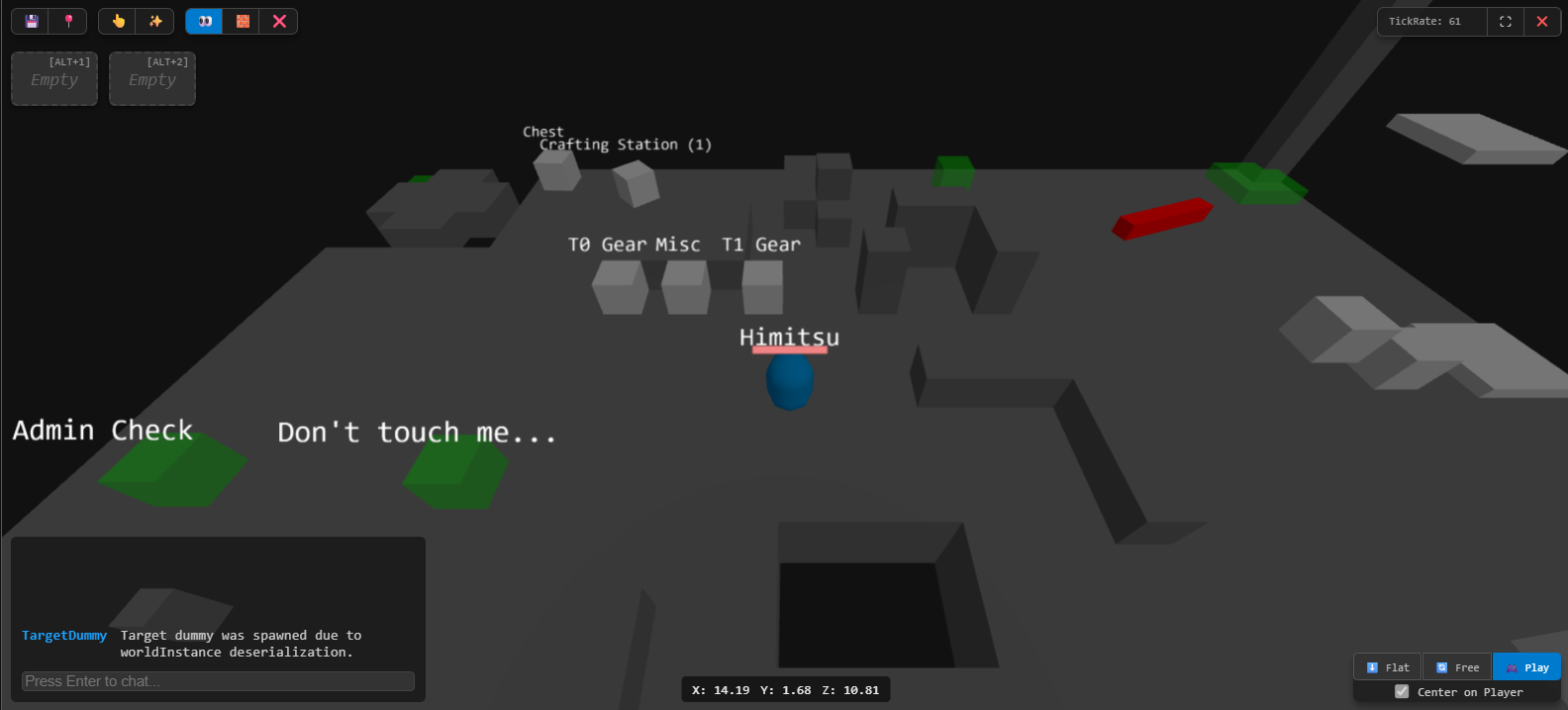
The PO Editor is the official web-based client and debugging tool for Project-Override. It is NOT a visual representation of the game world as a player sees it, but a direct, real-time visualization of the server's state and physics simulation. This server-centric view allows for unparalleled power in world design, live debugging, and system management.

Getting Started

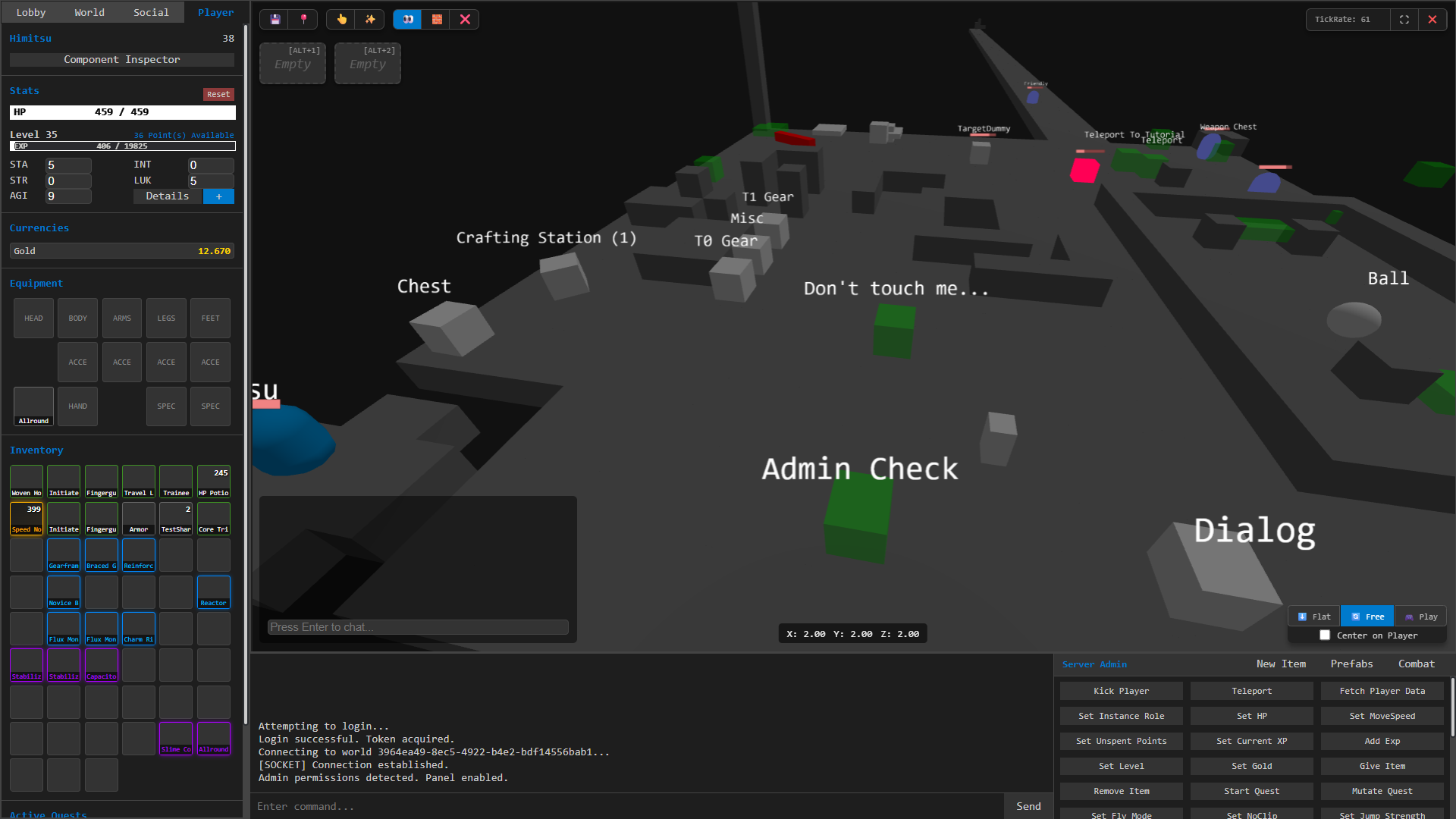
To begin, enter the server host address (e.g., lab.oppermann.nrw:3000), provide your credentials, and click Login. The interface is divided into three key areas:

  • Sidebar (Left): Tabs for Lobby, World, Player, and Social.
  • Main View (Center): The 3D world viewport and primary tools.
  • Bottom Panel: Console and Admin-only command panel.

Editor Controls & Features

Main View & Cursor Tools

The toolbar in the top-left controls your cursor's action in the 3D world. You can switch between selecting, adding, cloning, or removing entities, as well as powerful block tools for world building like Add Block (E) and Remove Block (R).

Camera modes (Flat, Free, Play) in the bottom-right allow you to switch between an orthographic map editor, a free-orbit debug camera, and a player-follow camera for testing.

Context Menus

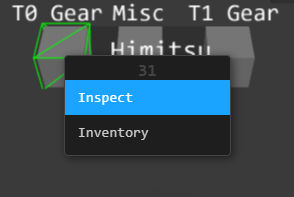
Right-clicking on entities in the world or items in your inventory opens powerful context menus. You can instantly inspect an entity's components, trigger interactions, manage inventories, or use/equip/drop items directly from these menus.

Administration & GM Tools

Component Inspector

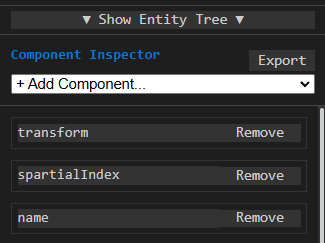
The primary tool for debugging. Select an entity in the World tab to see all its components. Click any component name to open a full-screen JSON editor, allowing you to modify its data directly. You can also add or remove components on the fly.

Admin Commands Panel

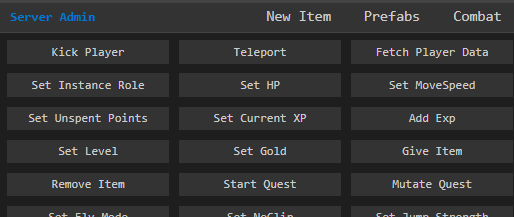
This panel in the bottom-right gives you single-click access to the most common GM actions. Modify stats, give items, teleport entities, freeze AI, manage quests, and even execute raw server events with the powerful Call Action (Event) tool.

Specialized Game System Tools

Item Studio

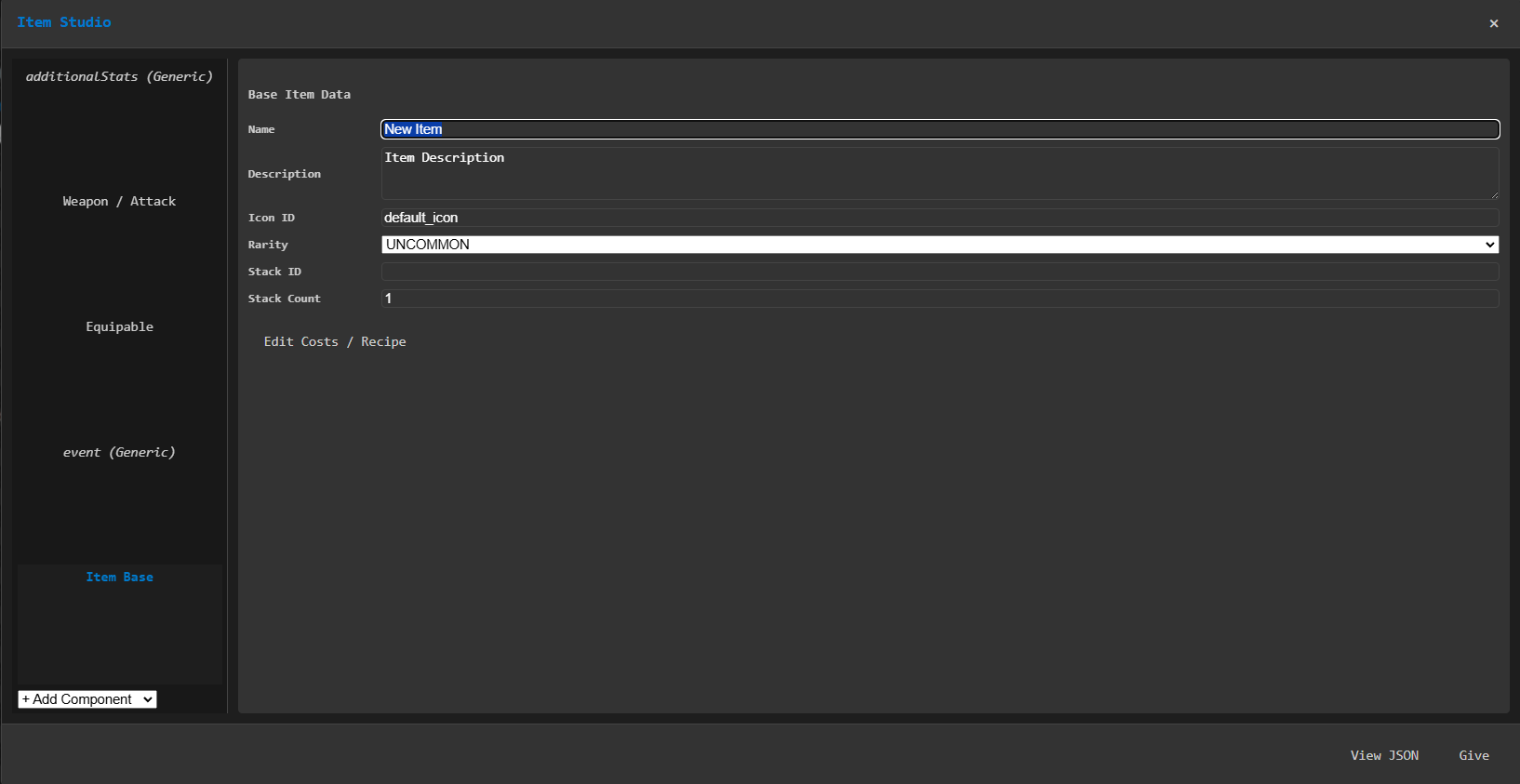
A dedicated interface for creating and editing complex items. Manage base properties, equipable stats, weapon attacks, recipes, and shard logic through a clean, tabbed interface instead of raw JSON.

Event Studio

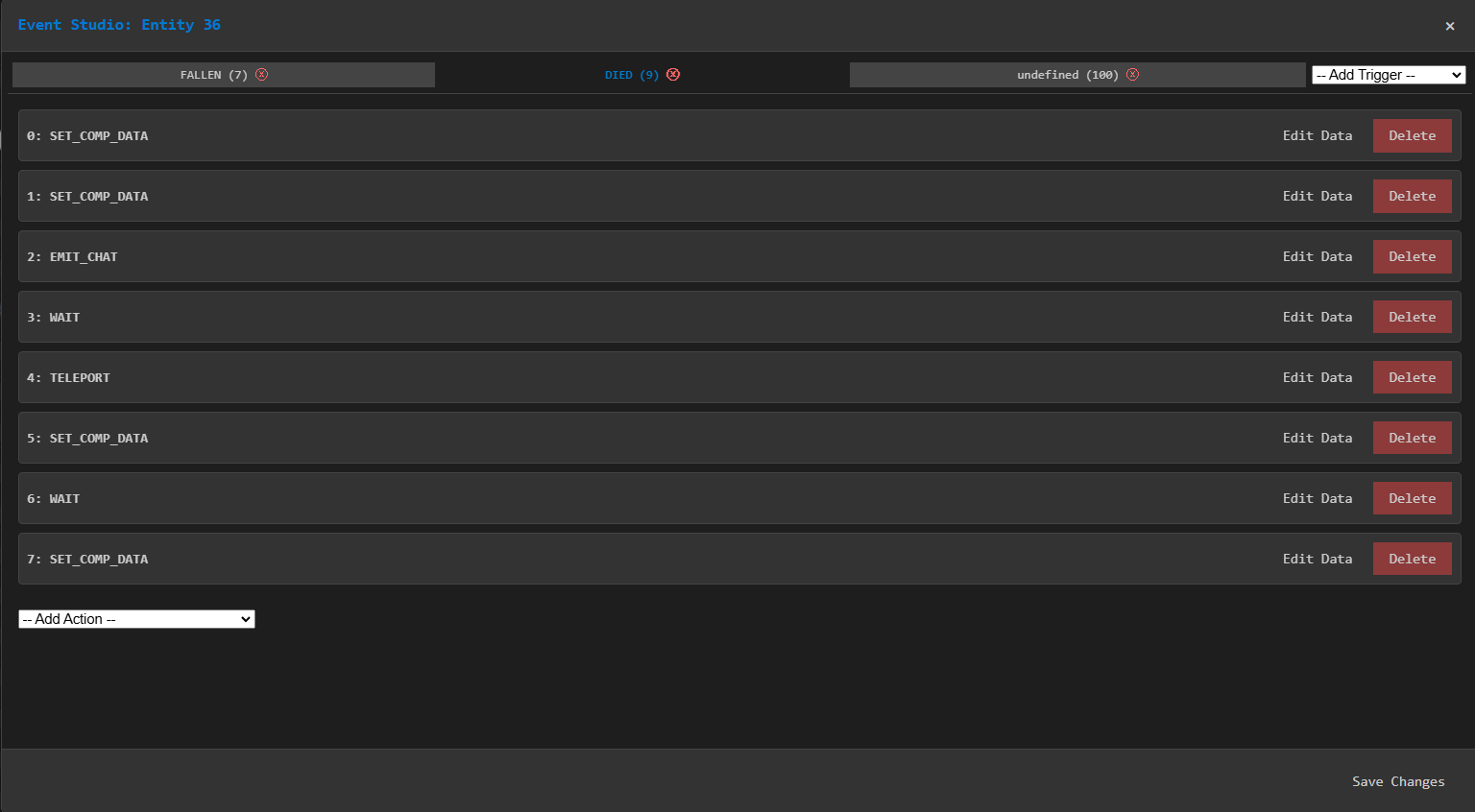
Design server-side logic sequences for any entity. Using triggers like INTERACT or DIED, you can build a drag-and-drop list of actions (e.g., SHOW_DIALOG, GIVE_ITEM, START_QUEST) to create complex NPC behaviors, traps, and quests.

AI Studio & Combat Simulator

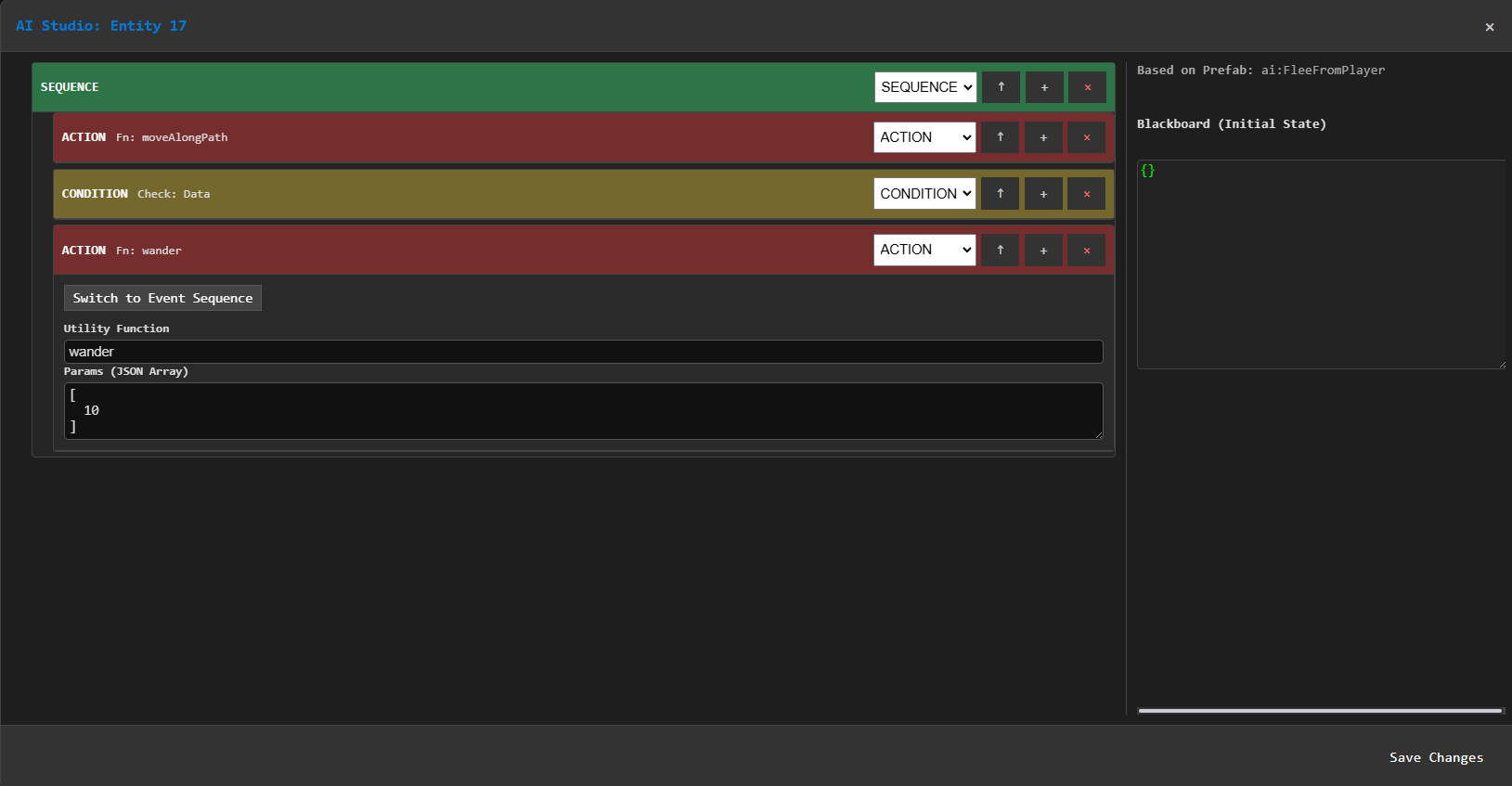
Visually design entity decision-making with Behavior Trees in the AI Studio. Test combat balance with the Combat Simulator, which allows you to configure an attacker and defender, run single or bulk attack rolls, and see detailed metrics like Average DPS and Hits to Kill.

Centralized Server Management

The PO Console is the primary web-based administration interface for Project-Override. It provides a comprehensive suite of tools for real-time server monitoring, database management (CRUD), and live game master (GM) operations. Unlike the PO Editor, which focuses on a visual, in-world state, the Console is your hub for high-level control over users, worlds, and live server instances.

Screenshot of the main dashboard

Getting Started

To begin, use the server address to access the login page, provide your administrator credentials, and click Sign In. The interface is organized into logical sections in the sidebar:

  • Dashboard: An at-a-glance overview of server health and activity.
  • Monitoring: Real-time tracking of active worlds, online players, sessions, and parties.
  • Management: CRUD interfaces for core database records like users, characters, and world templates.
  • Console Users: Administration for the accounts that can access this console.
Screenshot of the UI layout with sidebar highlighted

Real-time Monitoring & GM Tools

Live Server Dashboard

The dashboard is your landing page, offering key metrics like the number of Online Players, Active World Instances, and Active Parties. Each statistic is a direct link to the relevant monitoring page for more detailed information.

This section provides a live, auto-updating snapshot of server activity, allowing for quick assessment of the server's state.

Screenshot of the Monitoring section tables

Active World Console

From the Monitoring > Active Worlds list, you can open a powerful management console for any live world instance. This is where most GM actions take place:

  • Player Manager: Kick, teleport, give items to, heal, or kill any player in the instance.
  • Entity Spawner: Spawn any prefab (NPCs, monsters, items) directly into the world at specified coordinates.
  • World Control: Send server-wide broadcast messages, modify terrain voxels, and set the world's default spawn point.
  • Force Termination: Immediately shut down a specific world instance if it becomes unresponsive.
Screenshot of the Active World management tabs

Database Management (CRUD)

Managing Users and Identities

The Management section allows for direct manipulation of the database. You can create, view, update, and delete core game data.

User creation is a key feature, involving the creation of a Console User (for login), a User profile (the game account), and linking them with an Identity. This system allows a single game account to be accessed by different providers, such as Steam or a console login.

Screenshot of the User creation form or Identity list

Worlds, Characters, and Data

Manage the foundational elements of your game:

  • Worlds: Create and configure world templates, defining their rules, description, and party size. These templates are then launched as the "Active Worlds" seen in the Monitoring section.
  • Characters: View a list of all characters in the database, inspect their detailed data, and see which user account owns them.
Screenshot of CRUD Page